Report-03
Last updated April 30, 2026
Setup Report (Excel only)
Report-03 is an Excel report providing a comprehensive list of all your objects in the application.
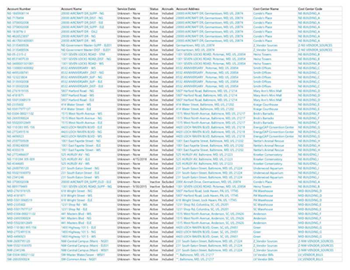
This Excel report gives you a complete list of your EnergyCAP objects in one place.
- Accounts
- Vendors
- Sites and site address.
- Cost centers
- Meters (includes active/inactive and meters not connected to accounts)
- Meter GL details
- Standard custom fields
All data is on a single sheet. Every object type (accounts, vendors, cost centers, meters, and sites) appears as columns in the same row—there are no separate sheets or sections. If you only see account columns, scroll right to find vendor, meter, and site columns further along the same row.
Some column groups (such as the site detail columns including floor area) may be collapsed by default. Click the + icon above the column group header to expand and show all columns in that group.
What Report-03 reveals
- Spot missing or incorrect information across your utility data.
- Find all inactive meters.
- Identify meters that are not connected to an account, look for rows where the account columns are blank.
- Review floor area.
Report-03 does not include billing information or bill dates.
Report-03 is available as: Excel
Key columns included in Report-03
All 51 columns appear on a single sheet. Scroll right to see all columns. Some column groups may be collapsed—click the + icon to expand them.
Account columns
| Column |
| Account Name |
| Account Number |
| Service Dates |
| Status |
| Accruals |
| Excluded From Audits (Y/N) |
| Account Address |
| Account Country |
| Account Created By |
| Account Created Date |
| Account Notes |
Cost center columns
| Column |
| Cost Center Name |
| Cost Center Code |
Vendor columns
| Column |
| Vendor Name |
| Vendor Code |
| Vendor Role |
| Rate Schedule |
| Vendor Website |
| Vendor Address |
Meter columns
| Column |
| Meter Name |
| Meter Code |
| Serial Number |
| Meter in Cost Avoidance |
| Primary Use |
| Meter Status |
| Acct-Meter Begin Date |
| Acct-Meter End Date |
| Meter Created By |
| Meter Created Date |
| Demand Response |
| Asset ID |
| Project |
| Commodity |
Building / site columns
| Column |
| Building Name |
| Building Code |
| Current Floor Area |
| Unit |
| Floor Area Effective Date |
| Primary Use |
| Weather Station |
| Weather Station Code |
| Building Address |
| Building Country |
| Constructed Date |
| Date of Last Energy Audit |
| LEED Certification |
| Operating Hours |
| Facility Manager Assignment |
GL columns
| Column |
| General Ledger Record |
| SubCode1 |
| SubCode2 |
Set your filters for Report-03
- Limit to a subset of data
Set a filter such as Topmost place, Site group, or Commodity.
Example Report-03
An example report of all the active accounts for the City Hall building.
Set the filters to:
- Account = active
- Topmost place name = City Hall

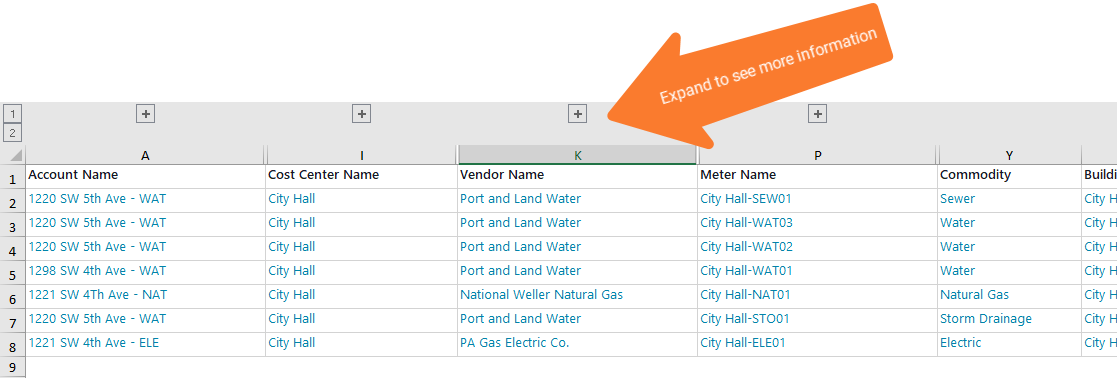
Available filters for Report-03
Recommended filters for Report-03
- Account is active - If this filter is not included, both active and inactive accounts are included in the report.
- Accrual account - Select yes to include accrual accounts.
- Exclude account custom fields - For Report-03 this filter excludes the account custom fields from the report. Each custom field is a separate column in the report.
- Exclude meter custom fields - For Report-03 this filter excludes the meter custom fields from the report. Each custom field is a separate column in the report.
- Exclude place custom fields - For Report-03 this filter excludes the place custom fields from the report. Each custom field is a separate column in the report.
- Exclude vendor custom fields - For Report-03 this filter excludes the vendor custom fields from the report. Each custom field is a separate column in the report.
- Meter group - Filter for specific groups. To include all group members, do not set a topmost filter. You can combine with other filters if you want to refine your results.
- Site group - Filter for specific groups. To include all group members, do not set a topmost filter. You can combine with other filters if you want to refine your results.
- Topmost cost center code - When you use this filter you are selecting the topmost cost center you want to be included. When you set a topmost cost center it is the highest level of the accounting tree used, this lets you select a subset of data for reporting.
- Topmost cost center name - When you use this filter you are selecting the topmost cost center you want to be included. When you set a topmost cost center it is the highest level of the accounting tree used, this lets you select a subset of data for reporting.
- Topmost place code - Select the topmost organization or site you want to be included. When you set a topmost organization or site it is the highest level of the facilities tree used, this lets you select a subset of data from your tree for reporting.
- Topmost place name - Select the topmost organization or site you want to be included. When you set a topmost organization or site it is the highest level of the facilities tree used, this lets you select a subset of data from your tree for reporting.
- Vendor code - Filter by one or more vendors, to see all vendors do not include a topmost or group filter. You can combine with other filters if you want to refine your results.
- Vendor name - Filter by one or more vendors, to see all vendors do not include a topmost or group filter. You can combine with other filters if you want to refine your results.
Optional filters for Report-03
- Account name - Filter to one or more accounts. Use caution when combining with topmost or group filters.
- Account number - Filter to one or more accounts. Use caution when combining with topmost or group filters.
- Accounts in cost center code - Use this filter to include accounts directly under one or more cost centers.
- Accounts in cost center name - Use this filter to include accounts directly under one or more cost centers.
- Commodity - Select one or more commodities. This filter is not compatible with the commodity category filter.
- Floor area - Filter to your desired floor area. To include all results do not set a topmost, group, or other filters.
- GL code - For Report-03 this filters to one or more GL codes you want to report on. To include all results do no set a topmost, group, or other filters.
- Meter code - Filter to one or more meters. Use caution when combining with topmost filters.
- Meter name - Filter to one or more meters. Use caution when combining with topmost filters.
- Meter serial number - Filter by one or more meters. To include all results do not set a topmost, group, or other filters.
- Meters in site code - Filter to include meters directly under one or more sites. To see all the meters at a certain level in your hierarchy use the topmost place filter. Use caution when combining with other topmost or group filters.
- Meters in site name - Filter to include meters directly under one or more sites. To see all the meters at a certain level in your hierarchy use the topmost place filter. Use caution when combining with other topmost or group filter.