Report-27
Last updated April 30, 2026
Bill Flags
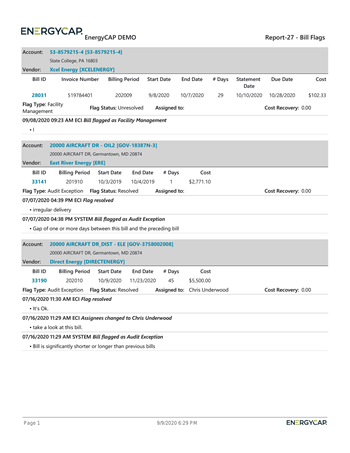
Bill Flags Report
This report displays flagged bills and their details, helping you track and manage billing issues.
What the report shows
Use filters to find bills based on:
- Unassigned flags
- A specific flag type
- Flag status
- Flags assigned to a specific user
- A specific cost recovery amount
Bill details include:
- Account
- Vendor
- Bill ID (hyperlink)
- Invoice number
- Billing period
- Start and end dates
- Number of days
- Statement date
- Due date
- Cost
Flag details include:
- Flag type
- Flag status
- Assigned to
- Cost recovery amount
- Flag issue
Why it’s useful
Use this report to:
- Quickly review flagged bills that meet specific criteria
- Navigate directly to bills using the Bill ID hyperlink
- Track and manage billing issues and recovery efforts
Report-27 is available as: PDF, Excel
Report-27 recommendations
Use this report to identify any potential problems before exporting bills to AP or GL.
Report-27 tip
Use Flags assigned to me to see only bills with flags assigned to you.
Set your filters for Report-27
Decide what type of flags you want to see.
- Flag status = Unresolved.
- Set a time frame for your report with Billing period or Bill entry date.
Example filters for Report-27
See bills with unresolved flags in the prior month that are assigned to a specific user.
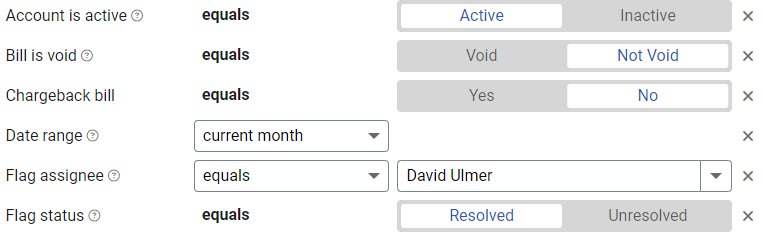
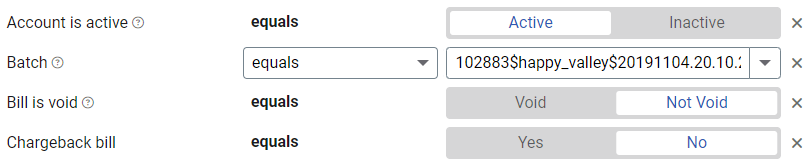
Unresolved flags for a specific batch of bills.
Available filters for Report-27
Recommended filters
- Cost recovery - Filter to bills with the cost recovery amount within the specified range. TIP: You track savings for each bill with the cost recovery option of a bill flag.
- Flag assigned to me - Select yes or no.
- Flag assignee - Filter for bills with specific flag assignees. To include all the matching bills do not set filters such as Billing period, Accounting period, or topmost filters. TIP: You can combine with other filters if you want to refine your results.
- Flag issue - Filter for bills with one or more flag issues. To include all the matching bills do not set filters such as Billing period, Accounting period, or topmost filters. TIP: You can combine with other filters if you want to refine your results. This filter is incompatible with Flag type.
- Flag status - Filter for bills with a specific flag status. To include all the matching bills do not set other filters such as Billing period, Accounting period, or topmost filters. TIP: You can combine with other filters if you want to refine your results.
- Flag type - Filter for bills with one or more flag types. To include all the matching bills do not set filters such as Billing period, Accounting period, or topmost filters. TIP: You can combine with other filters if you want to refine your results. This filter is incompatible with Flag issue.
- Flag unassigned - Filter for bills where the flag is unassigned. To include all the matching bills do not set other filters such as Date range, Accounting period, or topmost filters. TIP: You can combine with other filters if you want to refine your results.
Optional Filters
- Account is active - If this filter is not included, both active and inactive accounts are included in the report.
- Account name - Filter for one or more accounts. This filter is not compatible with topmost or group filters.
- Account number - Filter for one or more accounts. This filter is not compatible with topmost or group filters.
- Accounting period - If you don’t select an Accounting period or Billing period, all billing periods are included. This filter is not compatible with the Date range filter.
- Accounts in cost center code - Filter to include accounts directly under one or more cost centers. To see all the accounts at a certain level in your hierarchy use the Topmost cost center filter. This filter is not compatible with other topmost or group filters.
- Accounts in cost center name - Filter to include accounts directly under one or more cost centers. To see all the accounts at a certain level in your hierarchy use the Topmost cost center filter. This filter is not compatible with other topmost or group filters.
- Batch - Filter to include bills from one or more batches, to include all the bills in the batch, do not set a topmost, Date range, or other specific filters. TIP: You can combine with other filters if you want to refine your results.
- Bill entered by - Filter to one or more bills. To see all the bills do not set a topmost, Date range, or other specific filters.
- Bill entry date - Filter to one or more bills. To see all the bills do not set a topmost, Date range, or other specific filters.
- Bill has been split - Bill splits are configured on the account. This type of chargeback splits the entire bill to destination meters.
- Bill ID - Filter for specific bills, to include all the bills do not set a topmost or group filter. TIP: You can combine with other filters if you want to refine your results.
- Bill is approved - Select approved or not approved.
- Bill is from external vendor - When this filter is not selected, the report includes data from both vendor (external) and chargeback (internal) bills.
- Bill is void - If this filter is not included both void and not void are included.
- Billing period - If you don’t select an Accounting period or Billing period, all periods are included. This filter is not compatible with the Accounting period filter.
- Chargeback bill - Select yes or no.
- Exported to AP - Select yes or no.
- Exported to GL - Select yes or no.
- Held from accounting export - Select yes or no.
- Include accrual bills - If this filter is not included, the report includes accrual bills.
- Meter code - Filter to one or more meters. This filter is not compatible with topmost filters.
- Meter group - Filter for specific groups. To include all group members, do not set a topmost filter. TIP: You can combine with other filters if you want to refine your results.
- Meter name - Filter to include one or more meters. This filter is not compatible with topmost or group filters.
- Meter serial number - Filter by one or more meters. To include all results do not set a topmost, group, or other filters.
- Paid date - Select one or more dates.
- Pay status - To include all the matching bills do not set other filters such as Billing period, Accounting period, or topmost filters.
- Payment initiated date - Formerly called Payment Check Date.
- Payment type number - Formerly called Payment Check Number.
- Site group - Filter for specific groups. To include all group members, do not set a topmost filter. TIP: You can combine with other filters if you want to refine your results.
- Topmost cost center code - When you use this filter you are selecting the topmost cost center you want to be included. When you set a topmost cost center it is the highest level of the accounting tree used, this lets you select a subset of data for reporting.
- Topmost cost center name - When you use this filter you are selecting the topmost cost center you want to be included. When you set a topmost cost center it is the highest level of the accounting tree used, this lets you select a subset of data for reporting.
- Topmost place code - Select the topmost organization or site you want to be included. When you set a topmost organization or site it is the highest level of the facilities tree used, this lets you select a subset of data from your tree for reporting.
- Topmost place name - Select the topmost organization or site you want to be included. When you set a topmost organization or site it is the highest level of the facilities tree used, this lets you select a subset of data from your tree for reporting.
- Vendor code - Filter by one or more vendors, to see all vendors do not include a topmost or group filter. You can combine with other filters if you want to refine your results.
- Vendor name - Filter by one or more vendors, to see all vendors do not include a topmost or group filter. You can combine with other filters if you want to refine your results.