Bill reversal
Last updated June 30, 2026
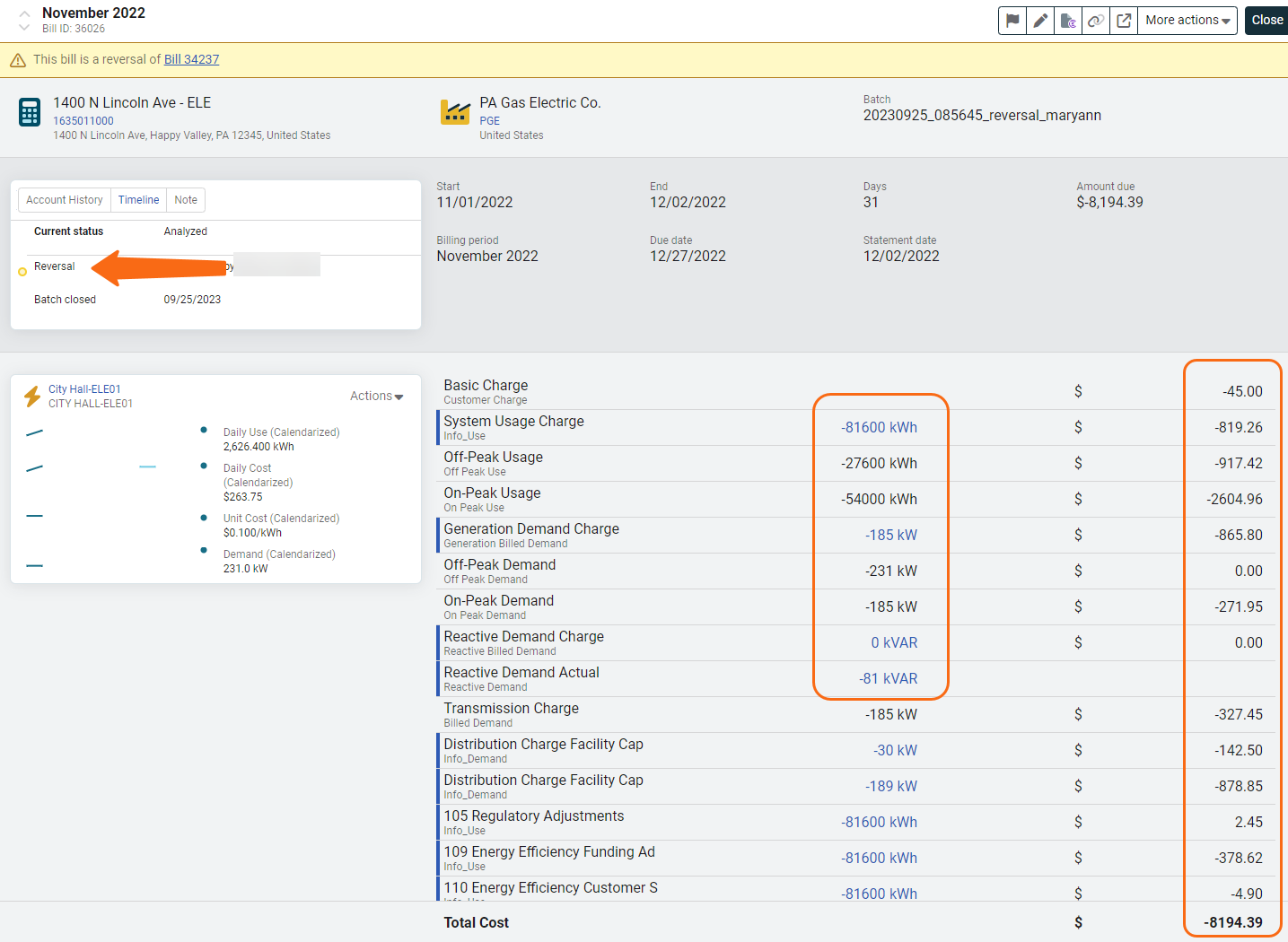
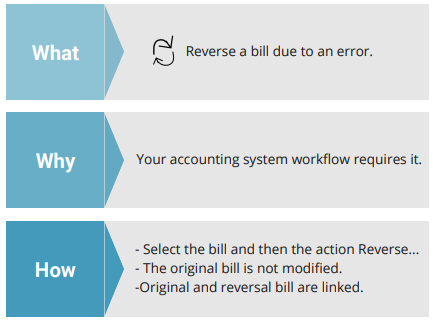
Bill reversal lets you reverse bills because of clerical errors, meter problems, or other issues. Use bill reversal instead of voiding or deleting the bill when your accounting system requires a paper trail. Bill reversal is not for undoing a change you made during a bill edit—if you need to correct a field on a bill, simply edit the bill directly.
Your accounting system rules determine when you should create a reversal bill, void the bill, or delete the bill.
Rebills from the utility
A rebill occurs when a utility issues a corrected bill for a previous billing period. How you handle it in EnergyCAP depends on whether the new bill is a full replacement or a partial adjustment.
Full rebill (replacement)
If the new bill completely replaces the original:
- Void or reverse the original bill.
- Enter the corrected bill as the new record for that period.
This ensures reporting reflects only the most accurate data.
Partial rebill (adjustment)
If the new bill is an adjustment rather than a full replacement:
- Keep the original bill.
- Enter the new bill as a supplemental bill for the same period.
EnergyCAP will aggregate both bills in reporting for that period, ensuring totals match actual charges.
Bill reversal details
- The original bill is not modified, an opposite bill is created.
- The original and reversal bills are linked.
- Reversal bills are not audited.
- If you delete the original bill the reversal bill remains.
- If you reverse a parent bill that has been split, the split bills are not reversed. You must also select and reverse them.
- The bill import process cannot create a reversal bill or link it to the original bill. If you import a bill with all negative fields, a banner indicates the bill may be a reversal.
- Void bills cannot be reversed.
Link a reversal bill to the original bill
If you have imported negative bills:
- Delete the negative imported bill.
- Search for the original bill.
- Reverse the original bill.
Undo a reversal
If you reversed a bill by mistake, you can undo it by deleting the reversal bill. Deleting the reversal bill removes it from the system and restores the original bill to its unreversed state.
Steps to reverse a bill
- View the bill.
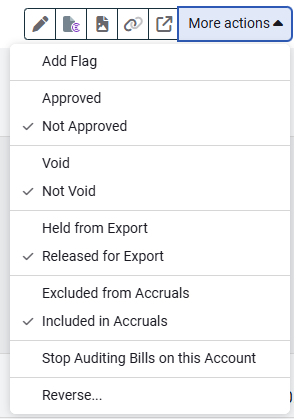
- More actions > Reverse...
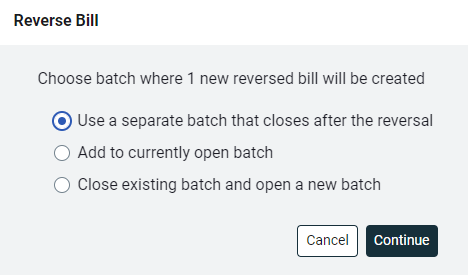
- Choose a batch option. It may be helpful to keep the reversal in a separate batch.
- Bill headers are copied from the original bill, unless they are updated.
- A banner confirms the bill was reversed.

- Click the bill id link to view the reversal bill.