Chargeback workflow overview
Last updated June 30, 2026
Chargeback workflow helps you group together and run similar chargeback steps in a specified order each month. This ensures the steps are run in the correct order each month and saves time by not having to run each chargeback individually.
When to use a workflow
Workflows are most useful when you have multiple chargeback steps that run every month in a specific order, or steps that depend on each other. For example, if a calculated meter uses the unit cost from a vendor bill, you can place the vendor bill step first so the cost is always available when the calculated meter step runs.
If you have only one or two meters and run them manually each month, a workflow may not be necessary. You can calculate or split bills individually from the meter or account without setting up a workflow.
Chargeback workflow facts
The chargeback workflow:
- Models the logical steps for calculating bills and distributing costs.
- Assigns workflow steps to both calculated and split bill versions.
- Displays each step clearly and lets you easily rollback if needed.
- Is visible to all users, but can only be processed by users with access to the related accounts and meters.
- Shows details about the bills created during processing.
Steps to create a chargeback workflow
You can model your current chargeback process in EnergyCAP by creating and arranging processes into workflow steps.
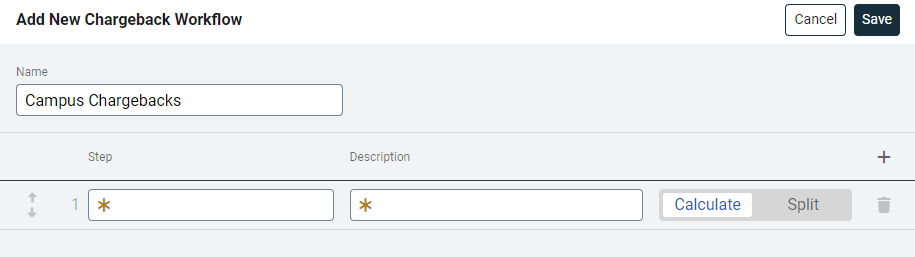
- Create a new workflow, for example, Campus Chargebacks or Tenant Unit Billing.
- In the new workflow, create each workflow step, provide a unique (per workflow) name, add a description, and choose whether the step is a split step or calculation step.
- To assign chargeback accounts and meters to a workflow step, use the application or setup spreadsheets.
Example 1
In this example the workflow and steps are created first and are available during the version setup of the account or meter.
- Create the workflow and workflow steps.
- Configure the chargeback.
- On the properties tab of the meter (bill calculation) or account (bill split), start a new chargeback.
- Configure the version. Accept Original as the name or update the version name as needed. A descriptive name is useful to distinguish between version revisions.
- Assign a workflow step by selecting from the drop-down.
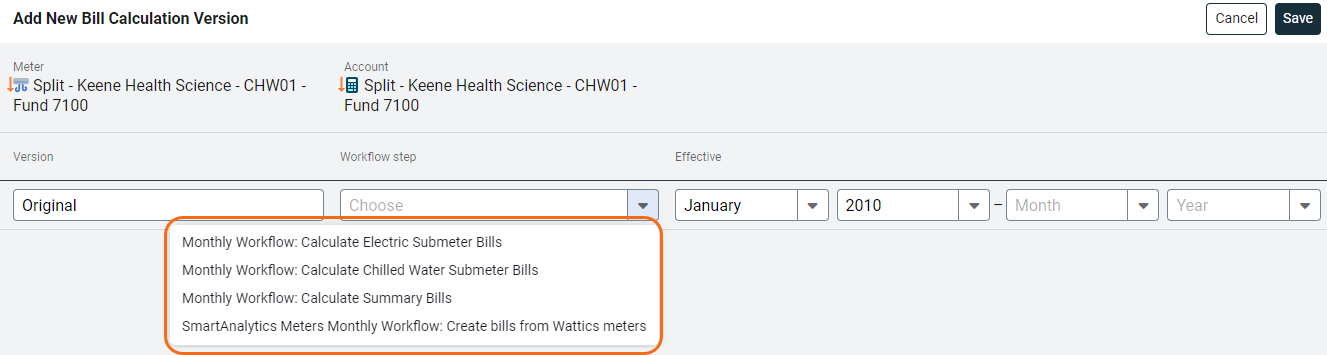
- Set the effective date for this version, the end billing period is optional.
- Save the version.
- Finish configuring the Bill Calculation or Bill Split details.
Example 2
In this example the workflow steps have not yet been created. The meters and accounts are created first and the version can be updated later.
- Configure the chargeback meters and accounts, leave the workflow step unassigned during version creation.
- On the properties tab of the meter (bill calculation) or account (bill split) start a new chargeback.
- Create a version name, a descriptive name is useful to distinguish between version revisions.
- Set the effective date for this version, the end billing period is optional.
- Save the version.
- Create the workflow and workflow steps.
- Edit each chargeback version, assign a workflow step by selecting from the drop-down.
Edit a workflow
Reasons to edit a workflow:
- Reorder steps.
- Add or delete steps. Steps cannot be deleted if they are assigned to a version.
- Edit step name or description.
- Delete a workflow (if all the steps are eligible for deletion).
Run a workflow
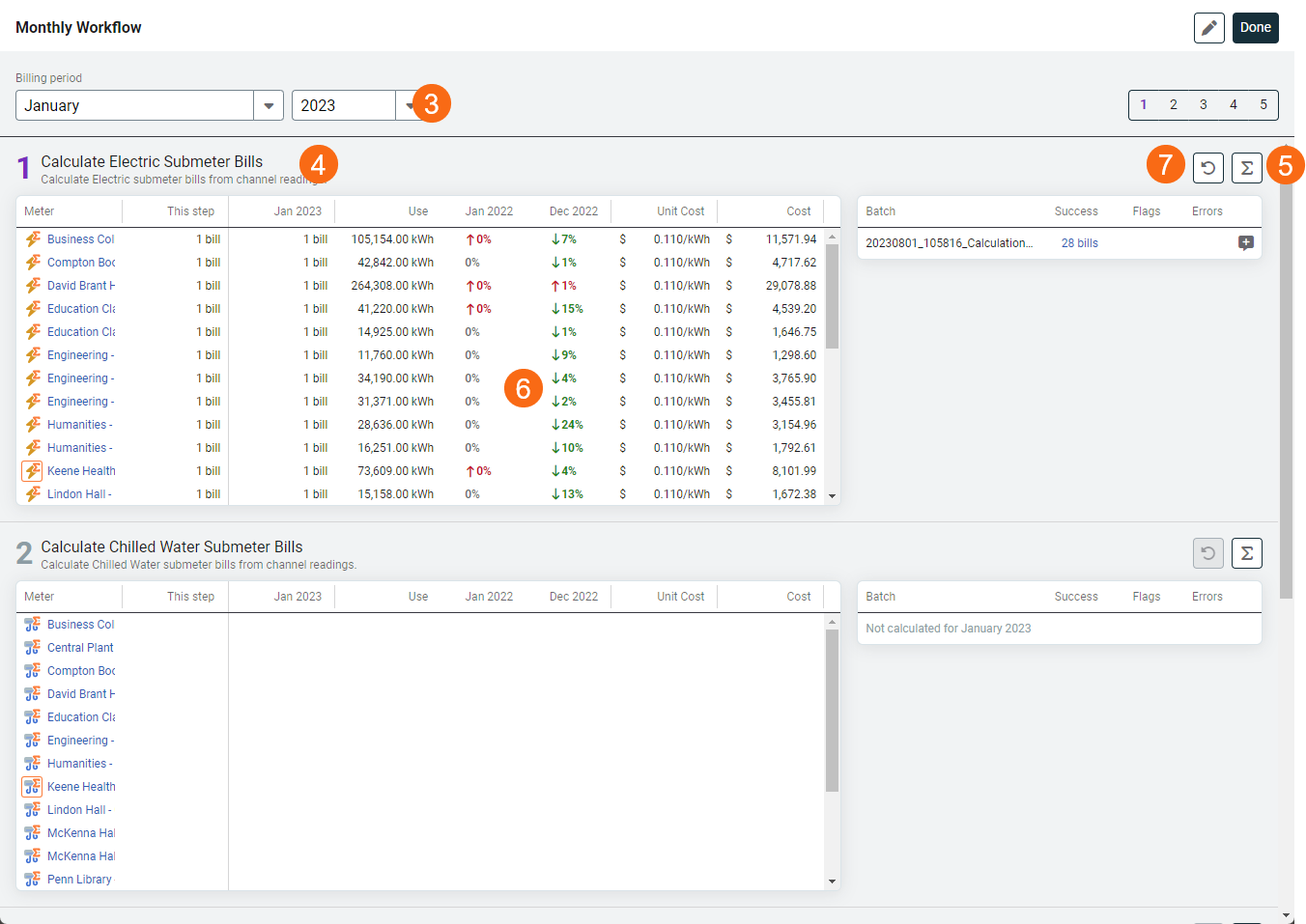
Run each step of the workflow process.
- Go to the Chargebacks module.
- Choose a workflow.
- Set the billing period, by default the chargeback processor displays the prior month.
- Review information for each step. Is the step ready to process? For example, are all the submeter readings entered? Are all the vendor bills entered?
- Process the step.
- Review the results.
- Reverse the step if needed.
Step order
Steps run in the order they appear in the workflow. If a step depends on the output of a previous step—for example, a calculated meter that uses the unit cost from a vendor bill—make sure the upstream step runs first. You can reorder steps at any time by editing the workflow.
Review steps
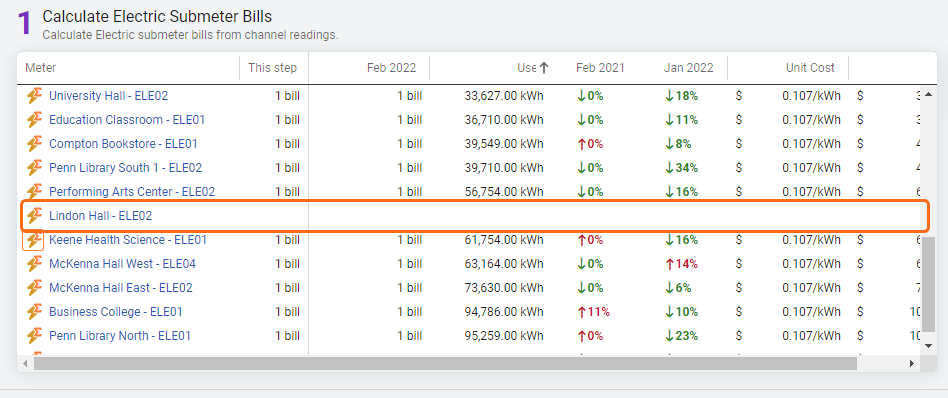
Review the results after each workflow step. Are there missing bills? Do bills seem reasonable?
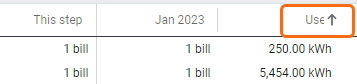
You can sort on any column to quickly see abnormal results.
- Negative, zero, or abnormally high or low use or cost
- No bill
- Multiple bills
- Abnormal unit cost
- Variance from previous month and same month from previous year
If you find a problem, reverse the step, fix the source data (such as submeter readings or the vendor bill), and rerun the step. See Undo a chargeback workflow step below for details on reversing steps in the correct order.
Sort on any column
Click any column header to sort.
Missing bills for a meter
When a step runs but no bill is generated for a meter, the row displays without a bill. Common causes include missing submeter readings, no vendor bill for the billing period, or a configuration issue on the meter. Resolve the underlying issue and rerun the step.
Undo a chargeback workflow step
Use the Undo step option to recreate or rerun chargeback bills for multiple periods. After undoing steps, fix any billing issues and then rerun the workflow.
Do not use a Bill Import File for this process. Bill Import Files are for actual utility bills only.
How it works
- You can undo and rerun workflow steps as needed
- When undoing a bill split:
- The source bill is marked as not split
- The destination bills are marked as void or deleted
- Calculated bills can also be marked as void or deleted
Order matters
Depending on the workflow, you may need to undo steps in a specific order:
- Start with the last processed step
- Work backwards through the workflow
Example
If a submeter bill is created in step 2 and split in step 4:
- Undo step 4
- Undo step 3
- Undo step 2
This ensures all related changes are properly reversed before rerunning the workflow.
Module menu
Use the module menu to enable additional options when running chargebacks. The most common use is setting custom start and end dates for a billing period or adding bill header information at run time.
Click Allow editing batch and bill header data when running chargebacks to include required bill header data when you process chargeback bills.

The chargeback options depend on what you have set in Bill header data for manual entry section. While most of the information is extra bill header information, configuring the start and end dates affects bill calculations.
