December 3, 2025
Published December 4, 2025
Utility Management
Bill import process now uses alias
You can now use account and vendor aliases when importing bills.
For example, if an account in EnergyCAP is entered as 123-45 (matching the format on the paper bill), but your import file lists it as 12345, you can add an alias in EnergyCAP. The alias lets the bill import process match the account and import the bill without errors.
Aliases
- Must be unique.
- Added when editing a vendor or account.
- Add up to five for each account or vendor.
- Searchable with global search.
Bill Capture enhancements
We've updated the Bill Capture screen to make it easier to understand the status of your uploaded files. Some of the following changes have been made in the table:
- File Name is now Import File Name.
- Transaction counts are in the first row.
- Upload status is now visible.
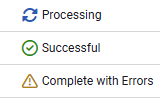
Bill Capture file upload
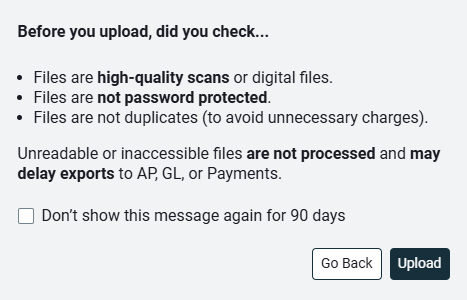
The following changes were made to the Bill Capture upload process:
- A new link is available to review the best practices.
- A new guide provides reminders about which files should be uploaded.
- After the Bill Capture upload, a success message shows how many files were uploaded.
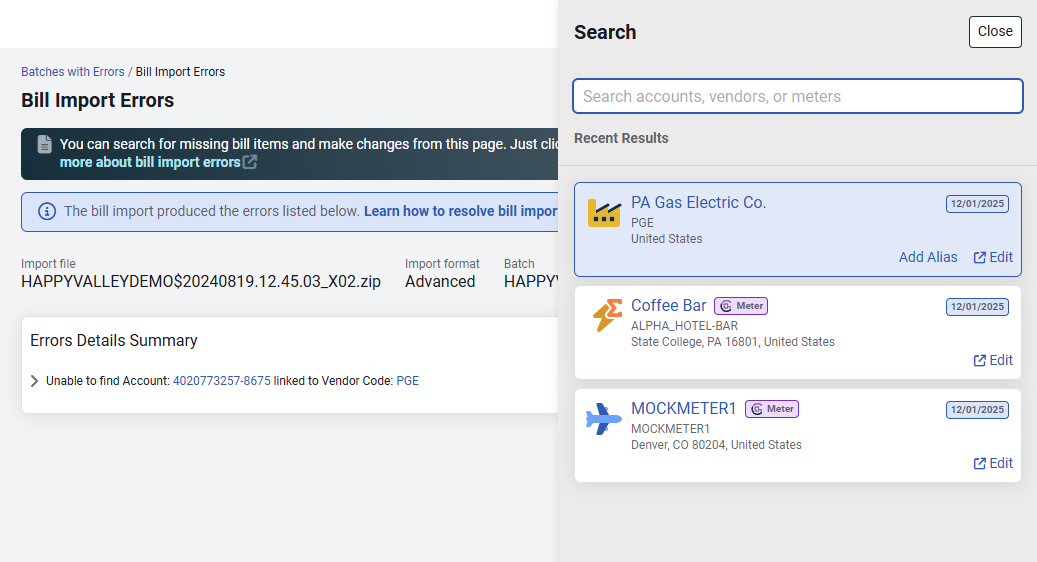
Search option in screen
The Search option has been added as a side panel on the Bill Import Errors screen and is limited to account, vendor, and meter. This helps you research errors, add an alias, or create new objects.
After the alias is created you can retry importing your bill import file.
Updated global search
You can now search for a Bill ID, vendor name, or vendor code. Bill ID must be an exact match.
Smart Analytics
Channel formula updates
Two new options are now available when creating calculated channels and calculated meter formula.
-
Exponentiation operator (in EnergyCAP is
**instead of^)- A squared:
A**2 - A cubed:
A**3
- A squared:
-
The ability to use != to compare against null
This lets you check whether a reading exists. For example, the following formula returns A if a reading is available; otherwise, it returns B.
