Report-38
Last updated April 30, 2026
Detailed Bill List by Meter
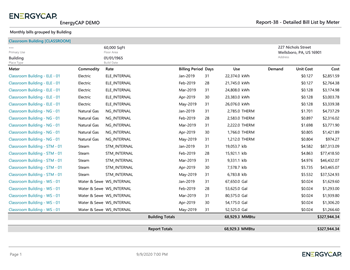
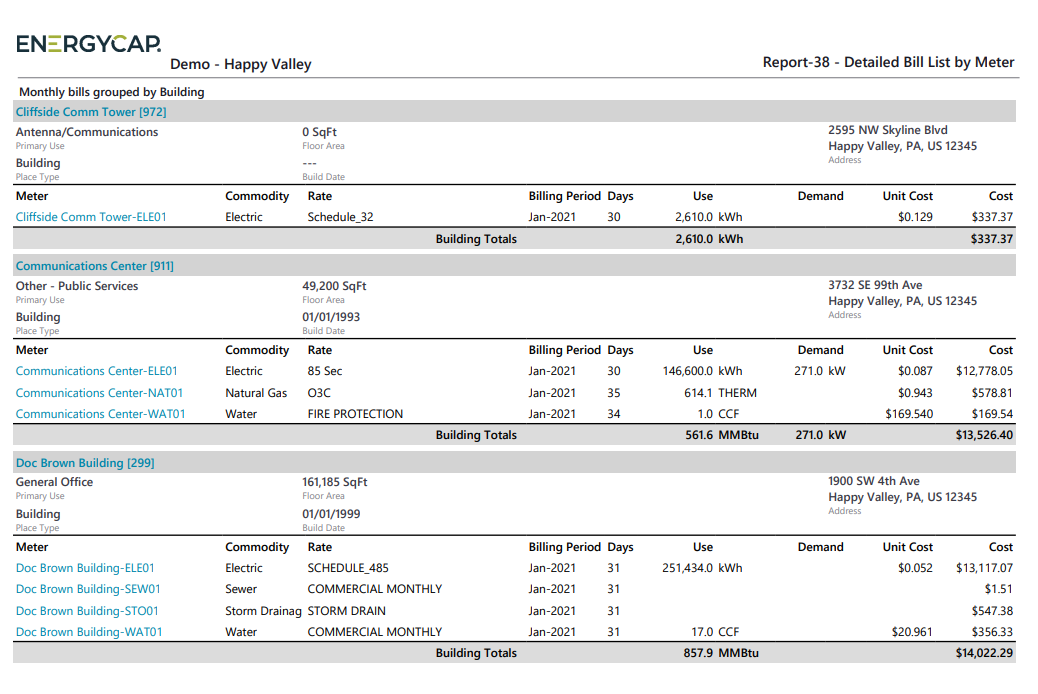
This report lists monthly bills, with one row per meter per bill. It includes key billing details such as rate, use, demand, unit cost, and total cost.
What the report shows
- Meter
- Commodity
- Rate schedule
- Billing period
- Number of days
- Use
- Demand
- Unit cost
- Cost
The report also includes
- Group by totals
- An overall report total
Why it’s useful
Use this report to:
- Review detailed bill data at the meter level.
- Easily see meters and their bill details when grouped by site.
- Analyze billing information across selected time periods.
Report-38 is available as: PDF, Excel, Word
Set your filters for Report-38
- Time period
Set your Date range or Accounting period. - Group by
This filter groups and provides subtotals for your selection. - Include account charges
Decide whether to include one-time or periodic charges.
These are not linked to use or demand on the bill.
Other filters to consider for Report-38
- Active accounts only
Decide whether to include only active accounts.
If this filter is not applied, your report includes both active and inactive accounts. - Void bills
Include if you want a full audit history.
Exclude to focus only on valid financial activity.
Example filters for Report-38
Example filter settings
- Date range = January 2022
- Group by = Sites
- Include account charges = no
- Account is active = active
- Bill is void = not void

Available filters for Report-38
Required filters
- Date range - Select one or more billing periods.
- Group by - This filter groups and provides subtotals for your selection.
- Include account charges - Account charges are separate from meter charges and not used in calculating unit cost. (For example, late fees, connection charges, or deposits)
Recommended filters
- Accounting period - Select one or more accounting periods.
- Meter group - Filter for specific groups. To include all group members, do not set a topmost filter. TIP: You can combine with other filters if you want to refine your results.
- Site group - Filter for specific groups. To include all group members, do not set a topmost filter. TIP: You can combine with other filters if you want to refine your results.
- Topmost cost center code - Select the topmost cost center you want to be included. When you set a topmost cost center it is the highest level of the accounting tree used, this lets you select a subset of data for reporting.
- Topmost cost center name - elect the topmost cost center you want to be included. When you set a topmost cost center it is the highest level of the accounting tree used, this lets you select a subset of data for reporting.
- Topmost place code - Select the topmost organization or site you want to be included. When you set a topmost organization or site it is the highest level of the facilities tree used, this lets you select a subset of data from your tree for reporting.
- Topmost place name- Select the topmost organization or site you want to be included. When you set a topmost organization or site it is the highest level of the facilities tree used, this lets you select a subset of data from your tree for reporting.
Optional Filters
- Account is active - If this filter is not included, both active and inactive accounts are included in the report.
- Account name - Filter for one or more accounts. This filter is not compatible with topmost or group filters.
- Account number - Filter for one or more accounts. This filter is not compatible with topmost or group filters.
- Accounts in cost center code - Filter to include accounts directly under one or more cost centers. TIP: To see all the accounts at a certain level in your hierarchy use the Topmost cost center filter. This filter is not compatible with other topmost or group filters.
- Accounts in cost center name - Filter to include accounts directly under one or more cost centers. TIP: To see all the accounts at a certain level in your hierarchy use the Topmost cost center filter. This filter is not compatible with other topmost or group filters.
- Bill ID - Select one or more Bill IDs to include in the report.
- Bill is from external vendor - When this filter is not selected, the report includes data from both vendor (external) and chargeback (internal) bills.
- Bill is void - If this filter is not included both void and not void are included.
- Commodity - Select one or more commodities for the report. This filter is not compatible with commodity category.
- Commodity category - Select one or more commodity categories. This filter is not compatible with commodity.
- Include accrual bills - If this filter is not included the report includes accrual bills
- Meter code - Filter to one or more meters. Not compatible with topmost filters.
- Meter name - Filter to one or more meters. Not compatible with topmost filters.
- Meters in site code - Filter to include meters directly under one or more sites. TIP: To see all the meters at a certain level in your hierarchy use the Topmost place filter. This filter is not compatible with other topmost or group filters.
- Meters in site name - Filter to include meters directly under one or more sites. TIP: To see all the meters at a certain level in your hierarchy use the Topmost place filter. This filter is not compatible with other topmost or group filters.
- Vendor code - Filter by one or more vendors, to see all vendors do not include a topmost or group filter. TIP: You can combine with other filters if you want to refine your results.
- Vendor name - Filter by one or more vendors, to see all vendors do not include a topmost or group filter. TIP: You can combine with other filters if you want to refine your results.