How to create calculated meters
Last updated June 24, 2026
Calculated interval data meters are meters that contain a single primary channel, and that channel is a calculated channel. These meters do not hold their own interval data; instead their values are derived from other meters.
Calculated interval data meters display a tag with the sigma symbol and the words Calculated Meter to distinguish them from standard meters.
Key details
- Conversion eligibility
Any meter without existing channels can be converted to a calculated interval data meter. - Formula restrictions
You cannot reference another calculated meter inside a calculated meter's formula. Only standard meters can be used. - Formula behavior
When you reference a meter in the formula, the system automatically uses the meter's primary value channel. - Formula syntax
Formula syntax matches the syntax used for calculated channels:
- Use @ to reference meters.
- Use ? to list available operators.
Create a calculated meter
- Open the meter.
Go to the meter you want as a calculated meter. - Select the Interval Data tab.
You can only convert a meter that has no channels. The empty state screen has an option Convert to Calculated Meter. - Define the meter.
In the setup:
- Set the Reading Type
- Create the formula using:
- Logical and arithmetic operators
- Fixed values (constants)
- Use the @ to find meters and ? to see available operators - Save the channel.
- The interval is determined automatically
- Select the correct summarization method
- Set the Units
- Review your formula, make adjustments as needed, then Save
Calculate tenant data example
In this example, we have a medical centre building with electric meters for each area:
- Admin
- Common areas
- Doctor office 1A
- Doctor office 1B
- Doctor office 2A
- Doctor office 2B
- Examination room
- Lab
- Nurse station
- Procedure room
For this example we've created a second building for the calculated meter.
- Urgent care (calculated meter)
In the applications it looks like this.
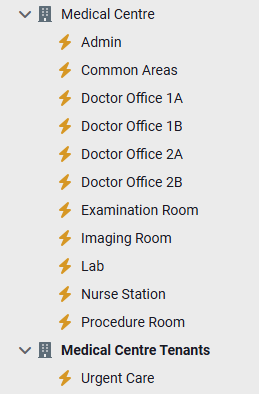
The Urgent Care meter's interval data will be calculated from meters in the Medical Centre.
The calculation for the Urgent Care meter is the total of:
- 100% of the energy use at Nurse Station
- 50% of the energy use of Examination Room
- 50% of the energy use of Imaging Room
- 25% of the energy use at Admin desk
The formula would look like this:
- Nurse Station + 0.5*(Examination Room + Imaging Room) + 0.25*Admin
This interval data could now be used to create an interval bill for Urgent Care.
Renewable example: Calculating purchased electricity
In this example, the building has three meters:
- Purchased electricity
- Solar PV (solar generation)
- Total use (building consumption)
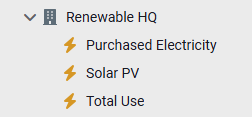
Only two meters provide data:
- Solar PV meter - how much energy the solar array generates (varies because the sun isn't always shining)
- Total use meter - total energy the building uses
To find out how much electricity is purchased, subtract the solar generation from the building's total use when the building uses more than the solar system generates.
IF formula reminder
The IF function follows this structure: IF(condition, value_if_true, value_if_false)
Formula used to calculate purchased electricity
IF(Solar PV < Total Use, Total Use - Solar PV, 0)

Breakdown
- Condition
Solar PV < Total Use
Checks if the solar system is producing less energy than the building needs. - If true
The building must purchase electricity
Calculation → Total use - Solar PV - If false
Solar generation meets or exceeds building use.
Purchased electricity → 0