Users and roles
Last updated August 4, 2026
Administrators configure roles and permissions to control user access.
The Users and Roles section gives you access to a full view of user accounts, user groups, and roles within the system. It includes:
- Active users
- Inactive users
- User groups
- Roles and permissions
What the Active Users table shows on screen
The Active Users table displays key information for each user, including:
- User details (name, email, group)
- Topmost permissions
- Date and time of last login
Last login date and time is visible in the on-screen table only. It is not exported in any downloadable report.
Downloadable roles and permissions report
The report available for download on the Users and Roles page is a roles and permissions audit. It lists each role and the permissions assigned to it. It does not include per-user login timestamps or any user activity data.
A variety of user roles are available ranging from the Default role (read-only to most features) to the Administrator: Full Access role (full access to all features). You can only assign one role to each user.
To quickly create multiple users, a spreadsheet is available.
Is there a report that shows how often users log in?
No. EnergyCAP shows the last login timestamp in the Active Users table, but does not track or report login frequency or user activity. There are no reports that show user activity or actions taken.
Role and user management
Role management and user management can be assigned to different users.
What role can manage roles?
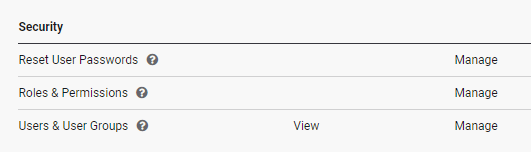
A user with the manage permission for Security: Roles & Permissions can copy a system role and then customize it.
What role can manage users?
A user with the manage permission for Security: Users and User Groups can create users and assign roles and groups to users.
Hide modules and tabs
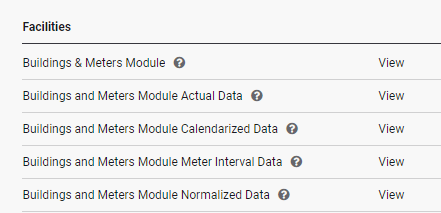
You can hide modules and tabs from users by removing the View option from a role.
Administrators create new roles
Two roles can create and edit user setup spreadsheets:
- Administrator: Full Access
- Administrator: Security and Global Settings
Only these two roles can see the Users and Roles option.
Permissions
A roles and permissions audit report is available for download on the Users and Roles page. The report lists each role and the permissions assigned to it. It does not include per-user login timestamps or user activity data.
Custom user roles are created by administrators.
Default user roles
The system roles and their descriptions are shown in the table.
The roles available vary based on your software subscription.
|
User Roles |
Description |
|
Administrator: Accounting |
Access to all accounting, bill, and workflow settings, features, and functions. View only access to other application settings and user management. |
|
Administrator: Facilities |
Access to all facility settings, features, and functions. Can create, edit, and approve Bills. Cannot export bills or modify exported bills. View only access to accounting settings and user management. |
|
Administrator: Full Access |
Full access to all settings, features, and functions including user management. |
|
Administrator: Full Access Except Security |
Full access to all settings, features, and functions except user management and global settings. |
|
Administrator: Limited Delete |
Access to most features and functions including user management. Limited ability to delete data and edit Cost Avoidance settings. |
|
Administrator: Security and Global Settings |
Create and manage users. Manage global application settings including application license. |
| Basic Contact | View only to the Dashboards and Reports modules. The default role for users added by email address through user groups. |
|
Bill and Account Management: With Bill Approval |
Manage accounts, meters, and other settings required for Bill Entry. Can approve bills. |
|
Bill and Account Management: Without Bill Approval |
Manage accounts, meters, and other settings required for Bill Entry. Cannot approve bills. |
|
Bill Entry: With Bill Approval |
Create, edit, and approve Bills. View only access to most other settings and features. |
|
Bill Entry: Without Bill Approval |
Create and edit bills. View only access to most other settings and features. |
|
* Capture Services Automation |
Import bills, manage batches, and import Interval data. CANNOT BE ASSIGNED TO REGULAR USERS |
|
* Capture Services Team |
Manage vendors, accounts, and facility data. CANNOT BE ASSIGNED TO REGULAR USERS |
|
DEFAULT ROLE |
View only access to the following modules: Dashboards, Sites and Meters, Accounts, Groups and Benchmarks, Vendors, and Reports. |
|
Energy Conservation Specialist |
Manage billing, accounting, facility, and Cost Avoidance data. Does not include administrator permissions. |
|
Facility Manager |
Manage sites, meters, Cost Avoidance, and other facility information. View only access to bills. |
|
Facility Manager: View Only |
View only access to sites, meters, Cost Avoidance, and other facility information. View only access to bills. |
|
* System Maintenance |
Install and configure application features. CANNOT BE ASSIGNED TO REGULAR USERS |
|
View Only: All Modules |
View only access to all modules of EnergyCAP. |
|
View Only: All Modules Except Bills |
View only access to all primary modules of EnergyCAP. Does not include permission to view bills. |
|
View Only: Dashboards and Facilities |
View only access to two modules: Dashboards and Sites and Meters. |
|
View Only: Dashboards and Reports |
View only access to the Dashboards and Reports Modules. |
| View Only: Dashboards and Emissions | View only access to the Dashboards and Emissions module. |
|
View Only: Dashboards, Facilities, Benchmarks, Reports |
View only access to four modules: Dashboards, Sites and Meters, Groups and Benchmarks, and Reports. |