Bill Capture frequently asked questions
Last updated May 4, 2026
Review these questions and answers. If your question is not answered, contact us for assistance.
Bill Capture process time
I uploaded a batch of utility bills. How long will it take for this batch to be processed?
If you have completed the Bill Capture enrollment process and are uploading bills on an ongoing basis, your batch is processed according to your contract.
- Pre-Payment Bills: Processed within 3 business days of receipt by EnergyCAP from you or your vendor(s).
Pre-Payment Bills are defined as live current bills. In general, these bills have not yet been processed for payment by you - you use the Bill Capture service as part of your bill payment process. Current bills are defined as bills with a statement date within 60 days of the upload date. - Post-Payment Bills: Processed within 5 business days of receipt by EnergyCAP from you or your vendor(s).
Post-Payment Bills are defined as live current bills already processed for payment, and the Bill Capture service is not part of your bill payment process. Current bills are defined as bills with a statement date within 60 days of the upload date. - Historical Bills: Processing time varies based on volume.
Historical bills are defined as bills having a statement date greater than 60 days from the upload date.
Do not upload a mixed batch of live and historical bills. If the batch you upload contains a mix of live and historical bills, the live bills will take longer to process.
Accidental upload
I accidentally uploaded bills that should not be processed. What steps should I take next?
EnergyCAP is not able to intercept and delete batches.
When an accidental batch upload occurs, you will need to delete the bills from your EnergyCAP database after the batch is processed.
Do not upload the same zip file again to Bill Capture minus the bills you do not want to have processed.
Bill Capture meter enrollments
What is a meter enrollment? What are the circumstances when I am charged a meter enrollment fee?
A meter enrollment occurs when a meter is enrolled for the first time in Bill Capture. Typical scenarios that result in meter enrollments:
- New vendor or commodity is enrolled in Bill Capture.
- Vendor changes account number(s) and you do not notify EnergyCAP in advance.
- You require significant changes to the way Bill Capture bills are mapped in EnergyCAP.
- Meter swap outs do not result in meter enrollments.
When you exceed your contracted amount of meter enrollments, you are charged an overage fee at the end of your Bill Capture term.
A meter is defined as a point of service as itemized on a vendor bill and/or tracked in EnergyCAP as a meter. A meter may represent a point of service for which no physical meter exists, such as sewer, fire lines, outdoor lighting, fuel oil tanks, etc.
How to remove duplicate bills
Why do I see duplicate Bill Capture bills in EnergyCAP? How do I clean them up efficiently?
The most likely reason for duplicates is the same bill was uploaded to Bill Capture multiple times. Except in extreme circumstances, all bills that are uploaded to Bill Capture are processed. Bill Capture does not reject duplicate bills. Your responsibility is to create a workflow to prevent duplicate vendor bills from being uploaded.
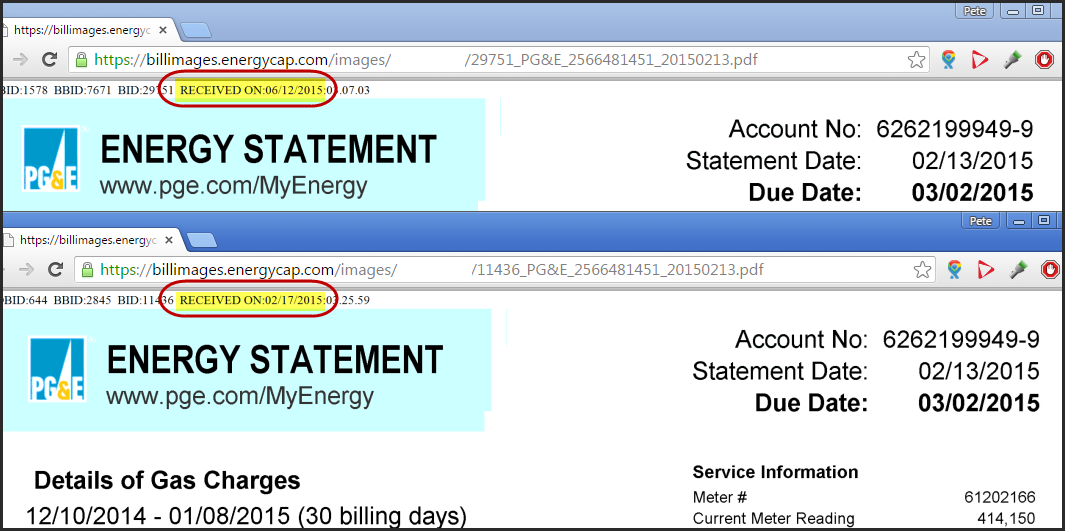
When you are a Bill Capture customer, Report-17 identifies duplicate/overlapping bills and a link to the report is emailed to you after each bill batch is processed.
Use this report to help you identify bills to void or delete in the system.
Duplicate detection for PDF files
Does Bill Capture automatically detect and flag duplicate bills?
Yes, but only for PDF files. During upload, Bill Capture automatically compares incoming PDF bills against existing bills on the same account. If the total cost, service dates, and invoice number (when present) all match, the incoming bill is flagged as a potential duplicate and held in the Problem Files tab for your review before it is processed.
From the Problem Files tab you can:
- Process Anyway — Accept the incoming bill and continue processing it.
- Ignore — Discard the incoming bill and keep the existing one.
Potential duplicates that are flagged and ignored do not count as Bill Capture transactions because they are caught before processing begins.
This automatic detection applies to PDF files only. For other file types (EDI, Excel, CSV), the original workflow applies: all uploaded files are processed, and it is your responsibility to prevent duplicate uploads. Use Report-17 to identify duplicate or overlapping bills after processing and void or delete as needed.
How to fix incorrect billing periods
Why are the billing periods of some Bill Capture bills incorrect? How do I fix this without editing one bill at a time?
Billing Periods are determined by EnergyCAP's bill import processor.
The likely causes of incorrect or misaligned billing periods are:
- Vendor bills uploaded and processed out of order.
- Gap between vendor bills.
- Overlapping vendor bills.
The circumstances above (as well as a few less common scenarios) have been known to cause the billing period to shift forward or backward.
If this happens to you, and it affects more than a handful of billing periods, feel free to contact us for assistance.
No start or end service dates on vendor bill
My vendor bill lists a statement (or invoice) date but does not list start/end dates for service or a service or billing period. How does Bill Capture determine the start and end dates for my vendor bill?
Bill Capture follows this logic to determine start and end dates for Statement Date Only bills:
- Start Date = Statement Date minus 1 Day
- End Date = Statement Date
My vendor bill lists a meter read date but does not list start and end dates for service. How does Bill Capture determine the start and end dates for my vendor bill?
Bill Capture follows the logic below to determine start and end dates for Read Date Only bills:
- If Days of Service are not present on the vendor bill, then the “Statement Date Only” rules above apply, except that Meter Read Date is substituted for Statement Date.
- If Days of Service are present on the vendor bill:
- Start Date = Read Date minus Days of Service
- End Date = Read Date
Pay amount mismatch error
I received a bill flag saying the Total Due line on my vendor bill does not match the calculated Total Pay Amount in EnergyCAP. What does this mean? What should I do?
When the line item Total Pay Amount is added to the following audit and either Flag or Flag and Hold is selected then this audit:
- Compares the Total Due line on your vendor bill against the calculated Total Pay Amount in EnergyCAP and
- Flags any bills where the Total Due and Total Pay Amount values don't match. If the audit is set to Flag and Hold, then EnergyCAP will hold the bill from export for your manual review and resolution.
You can read more about how to release bills from export in Manage Bill Exports.

Often, this mismatch is caused by a carried balance from a prior bill (for example, Past Due or Balance Forward) or by an error in a vendor bill. You can read more about bill audits and how to resolve them in Bill Capture Audits and Bill Audits Overview.
To reduce the amount of manual effort required to handle account-level balance lines (for example, Balance Forward, Past Due, etc.) from month to month, Bill Capture provides two automated ways of treating balances from previous bills:
- Treat Credits/Debits as informational values. (Does not impact pay amount.) This is the default handling.
- Treat Credits/Debits as included values. (Impacts pay amount.)
Account number changed
The vendor changed the account numbers on my bills. Do I need to notify EnergyCAP ?
When the account number on a bill is changed by the vendor, EnergyCAP’s processing center will treat the bill(s) as new meter enrollment(s) unless you notify EnergyCAP in a timely manner and provide EnergyCAP with a spreadsheet cross-referencing the old account number(s) to the new account number(s).
Begin day mismatch
For imported bills, when the begin date is one day after the end date of the previous bill, EnergyCAP will modify the begin date of the current bill to match the previous bill's end date.
This logic accommodates utility vendors with invoices that do not share the same end and begin date from month to month.
| No changes made during bill import | One day adjustment during bill import | |
| First bill | 1/1 - 2/1 | 1/1 - 1/31 |
| Second bill | 2/1 - 3/1 | 2/1 - 2/28 -> 1/31 - 2/28 |
Modifying the begin date of the imported bill when there is only a one-day difference is the most efficient method for correcting some date-specific logic in key EnergyCAP processes. This logic cannot be disabled.
More information on begin and end dates and their effect on cost avoidance calculations can be found in Bill Start and End Date Rules.